

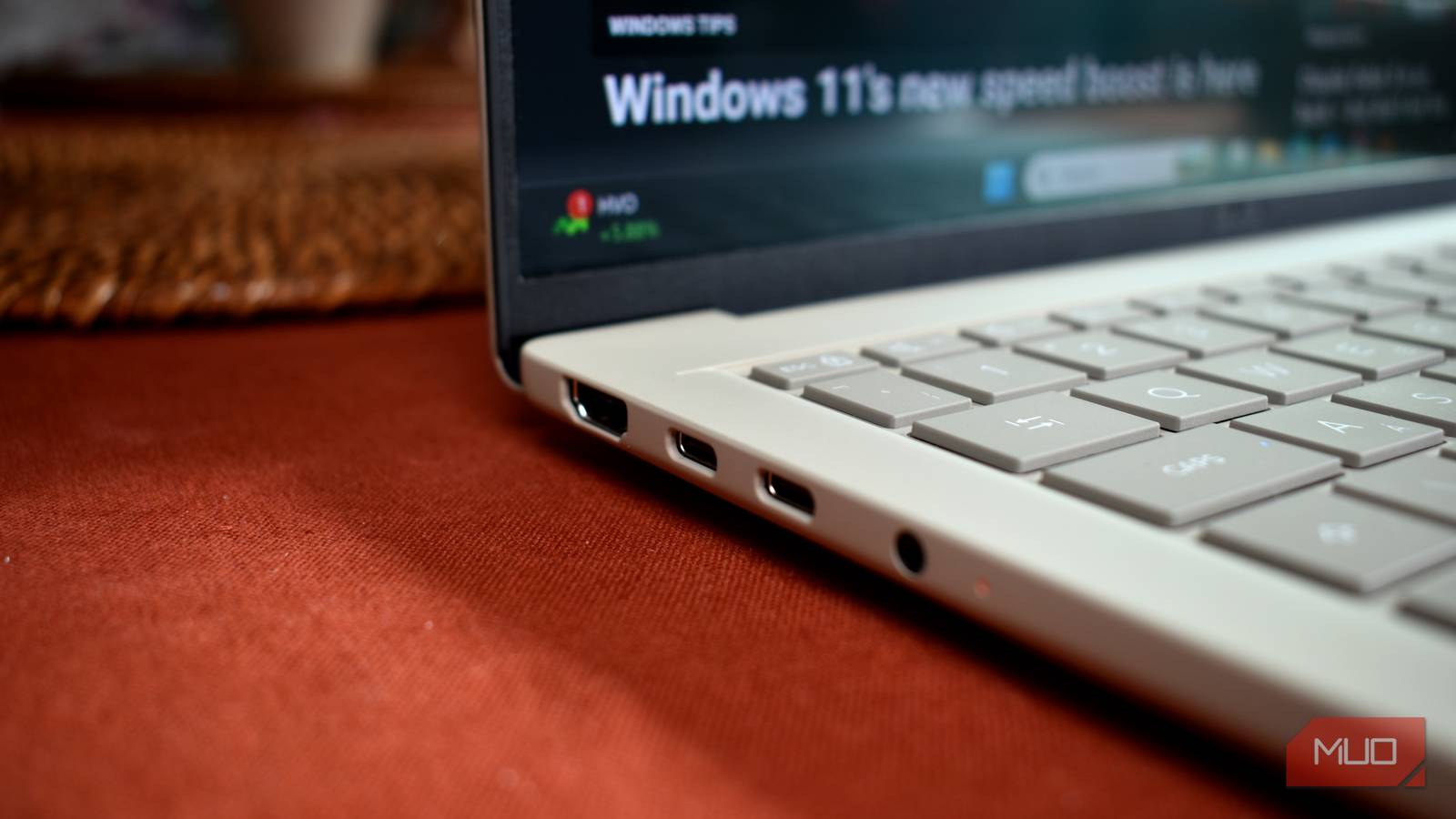
Every PC comes with multiple USB ports, and if you are like most people, you probably rely on the same one or two ports every day. The problem is that neither Windows nor PC manufacturers have ever made it obvious that one rectangular port can be drastically faster than another. That lack of awareness can quietly cost you time during file transfers and leave your phone, tablet, or wireless earbuds charging much slower than they should. The good news is that understanding the differences between USB ports is simpler than it seems, and once you know what to look for, you can stop leaving performance on the table.
USB ports may all look the same, but they aren't
At first glance, the USB ports on a desktop tower or laptop appear nearly identical. However, the USB standard has gone through multiple generations since its debut in the mid-1990s, and each generation brought substantial speed improvements. USB 1.0 and 1.1 were the first widely adopted versions, offering a maximum speed of 12 Mbps. USB 2.0 arrived in April 2000 and increased that to 480 Mbps, making it a staple for years and still present on many budget machines today. USB 3.0 followed in 2008 and delivered 5 Gbps, a tenfold jump that made high-speed external storage practical.
The naming conventions became even more convoluted. USB 3.1 Gen 1 is essentially a rebrand of USB 3.0 at 5 Gbps. USB 3.1 Gen 2 and USB 3.2 Gen 2 hit 10 Gbps. USB 3.2 Gen 2x2 reaches 20 Gbps by using two lanes of data. On modern high-end machines, USB4 and Thunderbolt 4 ports can handle 40 Gbps. For everyday users, the most important detail is simple: a drive plugged into a USB 2.0 port will operate at a fraction of its potential speed. Real-world copying results reflect those differences. USB 2.0 typically moves data at 30 to 40 MB/s, USB 3.0 can manage 100 to 400 MB/s, USB 3.1 Gen 2 approaches 1 GB/s, and USB 3.2 Gen 2x2 or USB4 can go higher if the attached drive and cable support it.
What the speed numbers mean in practice
Here is a simple comparison of the main USB standards you are likely to encounter on a PC or laptop:
- USB 2.0: 480 Mbps theoretical speed and 30 to 40 MB/s during real file copies.
- USB 3.0 / USB 3.1 Gen 1: 5 Gbps theoretical speed and 100 to 400 MB/s during real file copies.
- USB 3.1 Gen 2 / USB 3.2 Gen 2: 10 Gbps theoretical speed and up to about 1 GB/s during real file copies.
- USB 3.2 Gen 2x2: 20 Gbps theoretical speed and up to about 2 GB/s during real file copies.
- USB4 / Thunderbolt 3/4: 40 Gbps theoretical speed and up to about 3 GB/s during real file copies.
The wrong USB port can slow down file transfers and charging
Port speed is not only about data. USB 2.0 ports commonly provide up to 2.5W of power, which is the standard limit for a downstream port. USB 3.x raises that to roughly 4.5W. For older devices like a basic mouse or keyboard, the difference is irrelevant. For modern smartphones, portable speakers, smartwatches, or true wireless earbuds, it can mean extremely slow charging times. A dedicated USB-C PD port, however, can deliver far more power, often 18W, 65W, or even higher, depending on the laptop or charger. Therefore, plugging a phone into a random USB port out of habit could cause it to gain barely any charge during a short break.
This is why convenience should not be the main factor in selecting a USB port. On a desktop, front-panel USB ports are often the easiest to use, but they may be connected internally to a USB 2.0 header even when the rear panel includes USB 3.2 or USB4 ports. On a laptop, the nearest port near the front edge might be USB 2.0, while a slightly less accessible port on the other side offers significantly better throughput. The two ports can sit side by side and look exactly the same.
Think about the way most people connect an external SSD: they reach for the port closest to them and leave the drive there indefinitely. If that port is USB 2.0, copying a large project folder or backing up a photo collection becomes an exercise in patience. The same drive moved to a USB 3.2 Gen 2 port can finish the job several times faster. Many users only realize this after buying a faster drive and seeing no improvement at all. The fault is rarely the drive; it is the link between the drive and the computer. Cables matter as well. A high-speed port cannot overcome a cable rated for USB 2.0. That is why people sometimes see a blue USB 3.0 port but still get slow transfer rates. Without the proper cable, the port will fall back to the slower standard. Users should look for cables with the SuperSpeed logo or check the markings on the connector. It is also worth remembering that not every USB-C cable is the same. Some are designed for charging only, while others support high-speed data and video output. In order to get the best performance from a fast USB port, every component in the chain must support the same standard.
USB-C and Thunderbolt add even more ambiguity
The transition to USB-C made the situation even more confusing. The oval connector is physically uniform, but the capabilities behind it vary tremendously. A single laptop might have one USB-C port that supports USB 3.2 Gen 2 at 10 Gbps, another port that supports USB4 at 40 Gbps, and a third that supports Thunderbolt 4 for docks and external GPUs. All three ports look identical. Users can plug the same cable into each one and get different transfer speeds and power output levels. Some USB-C ports even support DisplayPort alternate mode, allowing them to drive an external monitor. The port itself gives no visual clue without printed icons, so many people simply assume every USB-C port is equally capable. That assumption is usually wrong. The only reliable approach is to consult the manual or the product specifications for the device.
Identifying your fastest USB ports
The first thing to check is color, though it is not a guarantee. Traditional USB 2.0 ports are normally black. Blue ports usually indicate USB 3.0 or USB 3.1 Gen 1 with 5 Gbps speeds. Some manufacturers use teal or green to signal USB 3.1 Gen 2 ports with 10 Gbps speeds. Red ports often indicate a charging or always-on port that provides power even when the PC is shut down. However, color coding has no universal standard, so a blue port could technically be wired as USB 2.0 on a poorly designed machine. Still, reputable manufacturers generally follow the conventions, making color a useful first signal.
Logos are the next clue. The basic USB trident symbol alone usually means USB 2.0. If the trident is accompanied by the letters SS, which stand for SuperSpeed, the port supports USB 3.0 or faster at 5 Gbps. The markings SS+ or SS10 indicate USB 3.1 Gen 2 with a 10 Gbps transfer rate. A lightning bolt icon often means the port supports battery charging even when the computer is powered off or in sleep mode. Some thin and light laptops use lightning bolt icons next to USB-C connectors to identify Thunderbolt ports. Reading these tiny labels becomes much easier once you know what they mean.
If a PC has no markings, or if the physical labels have worn away, Windows can still help. Open Device Manager and expand the Universal Serial Bus controllers section. Each USB controller and root hub is listed there, and the names usually identify the supported standard. A controller that mentions eXtensible Host Controller is linked to USB 3.0 or newer, while one labeled Universal Host Controller or Open Host Controller typically belongs to USB 1.1 or USB 2.0. Device Manager does not map a controller to a specific physical port on your desktop case, so the final step is to study the motherboard or laptop documentation. Manufacturer specifications will list the type and speed of every USB port. If you bought a desktop, the technical specifications will include each header's location, allowing you to match the label on the motherboard or front panel to the correct speed. With laptops, the online spec sheet often includes a detailed breakdown of each USB-C and USB-A port.
Once the fastest ports are identified, plan around them. Save USB 2.0 ports for low-bandwidth devices such as wired mice, keyboards, and thumb drives that do not need high speeds. Reserve USB 3.0 and higher ports for external SSDs, hard drives, card readers, and phones that benefit from both fast data transfers and stronger charging. Using the right port is free, and unlike buying a new drive or cable, it costs nothing to change, not even a trip to Settings. The only catch is remembering to check which port you are about to use.
Source:MakeUseOf News